Getting a free Google Voice number is simple: you create an account, select a plan and number, and set up your Google Voice phone number. However, with recent regulatory changes, Google Voice’s free version is now strictly for personal use only. If you want to use Google Voice for your business, you need to subscribe to a paid plan to avoid compliance issues.
The good news is that Google Voice has upgraded its interface and features to provide a more intuitive user experience. Paid plans start at only $10 per user per month as an add-on service to your Google Workspace account. With a subscription, you’ll also ensure compliance with FCC’s business texting regulations.
Featured Partners
Fit Small Business is able to offer our services for free because some vendors may pay us for web traffic or other sales opportunities. Our mission is to help technology buyers make better purchasing decisions, so we provide you with information for all vendors — even those that don’t pay us.
1
800.com
Employees per Company Size
Micro (0-49), Small (50-249), Medium (250-999), Large (1,000-4,999), Enterprise (5,000+)
Small (50-249 Employees), Medium (250-999 Employees)
Small, Medium
Features
Call Management/Monitoring, Call Routing, Contact Center, and more
In this article, I will walk you through how to get a Google Voice number and share tips on how to make the most of it for both personal and business use.
Free Google Voice vs Google Voice for Business
Since our last update, there have been significant changes to how free Google Voice accounts should be used, particularly regarding FCC compliance and 10DLC registration for business texting. To help you decide which option best suits your needs, here’s a detailed comparison of the free and paid version in terms of features and inclusions.
- Free Google Voice: Strictly for personal use and not applicable for multi-user collaborations
- Paid Google Voice: Available through Google Workspace, fully compliant with FCC business texting regulations, and supports multi-user access and call forwarding
Visit Google Voice
How to get a Google Voice number
Step 1: Create a Google account
To get a Google Voice number, you need an active Google account. If you already have one, skip this step and proceed to the next one. Otherwise, go to the Google Account sign-in page and click Create account. Fill out the form fields with basic information such as your full name and birthday. Then pick a Gmail address from the options provided or come up with your own.
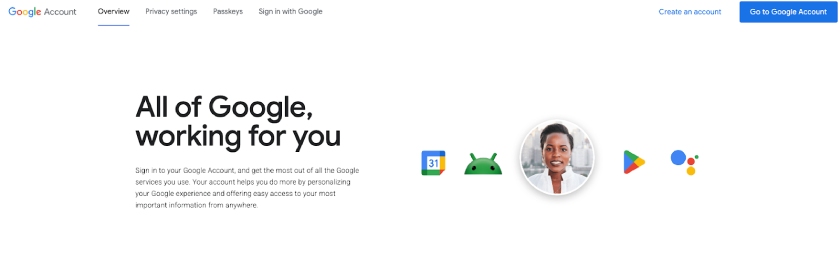
Choose between the two options: Create an account or go to Google Account
Step 2: Choose between a personal or business plan
To complete your account setup and get started with your Google account, choose between the two account types: personal and business.
For personal use
If you need a free Google Voice number for home or individual use, choose For personal use. Select your preferred device (Android, iOS, or Web). If you want to use your phone to sign up, select Android or iOS to download the Google Voice app. If you opt for the Web option, enter your credentials and agree to the terms of service to continue.
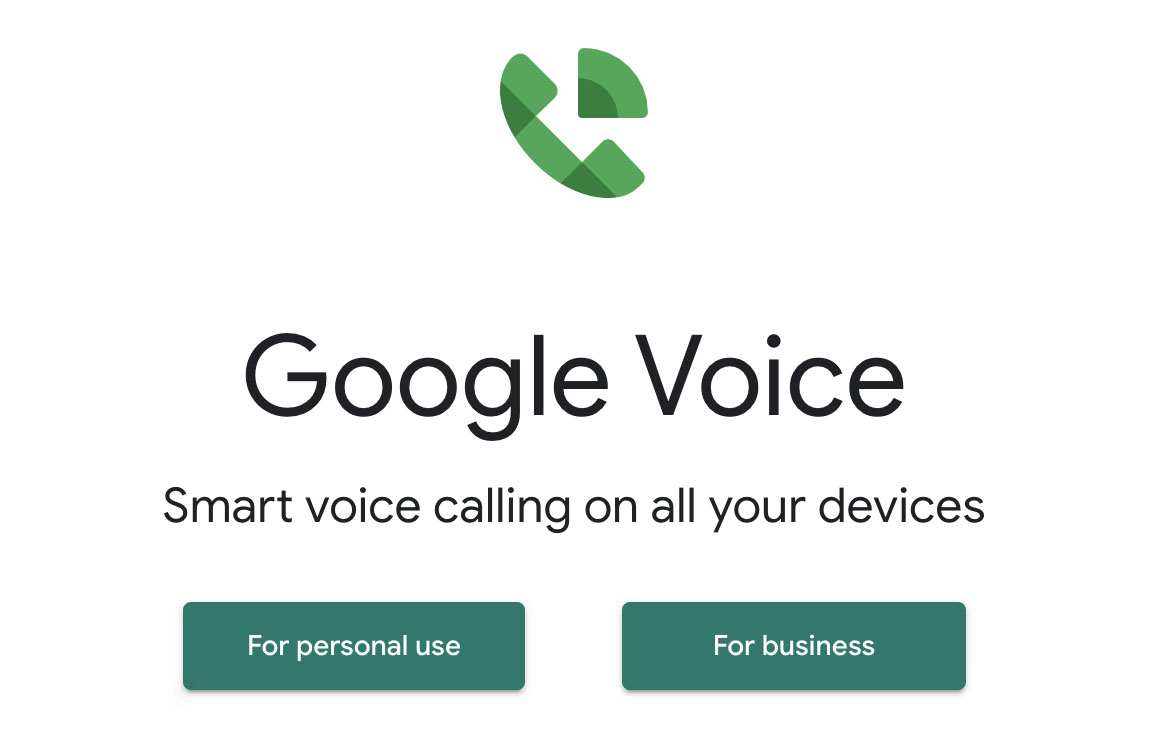
Determine the main purpose of your Google Voice account. (Source: Google Voice)
For business use
Signing up for business use requires admin permission under a Google Workspace account. If you don’t have one, purchase a Workspace account and choose your plan (paid plans start at $8.40 per user per month).
Step 3: Pick and verify your Google Voice number
The next step to getting a Google Voice number is to look for available numbers by city or area code. Available numbers will be displayed, and if none of what’s shown works for you, select Show more to see more options. Hit Select once you’ve decided on a phone number.
Google Voice offers a pool of local numbers for business subscribers, depending on the domestic countries you list upon sign-up. Search by city or area code and assign business phone numbers to each user added to the account.
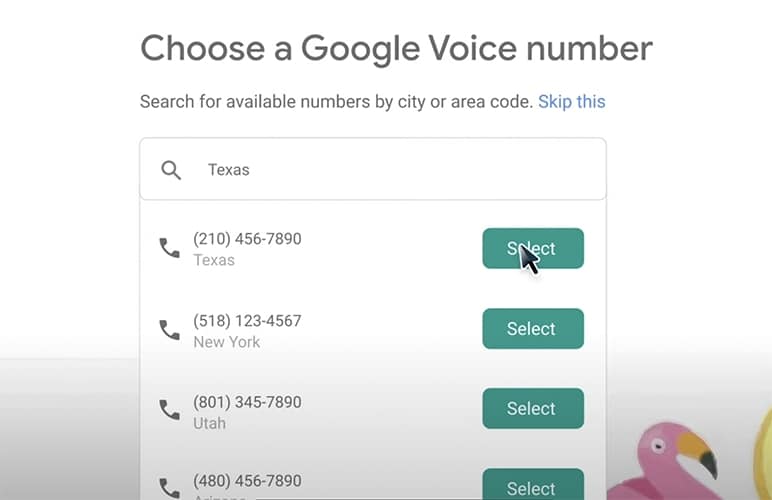
Select a number from the list of available combinations based on your city or area code provided. (Source: YouTube)
The next page will display your selected phone number. For verification purposes, link your existing phone number. Make sure to use a mobile or landline number based in the US. Note that Google Voice doesn’t allow VoIP numbers to verify an account.
After you’ve entered a number, Google Voice will send a six-digit verification code via text. For landlines, you will receive a voice call with the code. Once you’ve received code, enter it in the space provided and click Verify to complete your account setup.
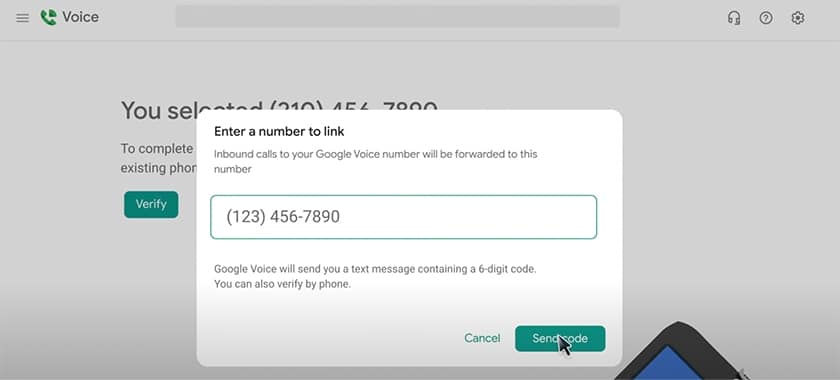
A US-based non-VoIP number is required to verify your new Google Voice number. (Source: YouTube)
Select Claim to get the number, and a confirmation prompt will inform you that your existing number has been added and successfully linked to your Google Voice account. Click Finish to complete the process.
Step 4: Set up your Google Voice number
Setting up Google Voice on your mobile phone is highly recommended so you can take full advantage of its VoIP capabilities. This way, you can manage calls and messages seamlessly, no matter where you are.
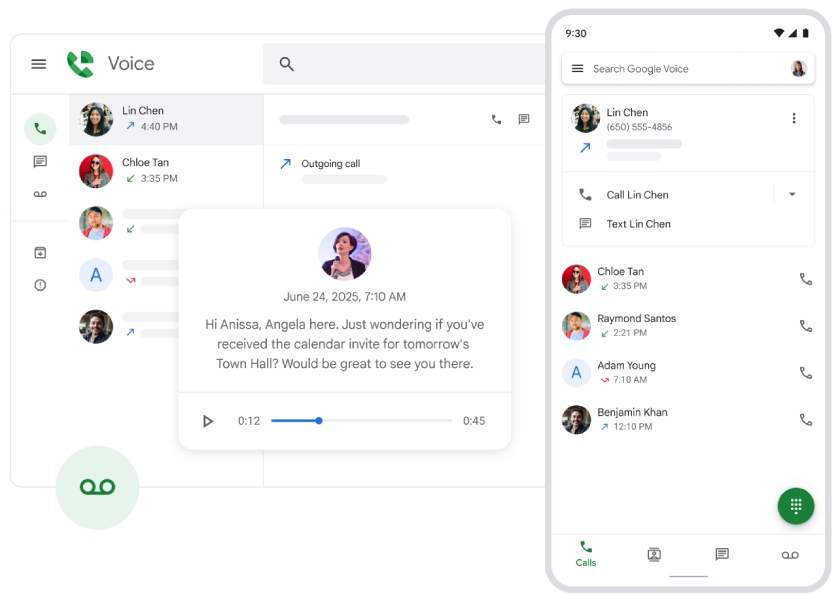
Google Voice works on desktops, laptops, mobile devices, and compatible desk phones. (Source: Google Voice)
Use your Google Voice number to make domestic and international calls, send texts, and leave voicemails. With its VoIP features, you can streamline your business communication and gain access to tools like call forwarding and ring groups to enhance team collaboration.
You can change your Google Voice number once a year. If you decide to switch and later find the new number unsuitable, Google gives you up to 90 days to reclaim your original number. Keep in mind that your first Google Voice number is free, but any additional numbers will require payment.
Step 5 (optional): Port your existing number
You need to pay $20 to port your mobile number to Google Voice. With a personal account, you just need to go to Settings > Account and click on Port a number then Get Started. Enter the number you’d like to port and request verification. As a final step, you need to provide your account details including account number, PIN, and billing address.
If you’re using a business account, from your Google Workspace dashboard, go to Apps > Google Voice > Number porting > Create port order. Simply provide the required details such as billing statement, porting name and details, country, and contact number. A letter of authorization (LOA) may also be required. Lastly, submit the port order and wait for it to be completed. You can see the status of your request on your account’s dashboard.
Step 6: Start maximizing your Google Voice number
Google Voice is a great way to stay connected with people while keeping your real number private. I recommend using your Google Voice number on online forms or websites to protect your privacy and avoid unwanted calls or messages.
Google Voice also allows you to customize voicemail greetings and create personalized messages for specific groups of people (e.g., family and friends or for unknown callers). It works across devices, which means you can send text messages and make calls from your phone, tablet, or computer. Regardless of what device you use, your messages will stay in sync.
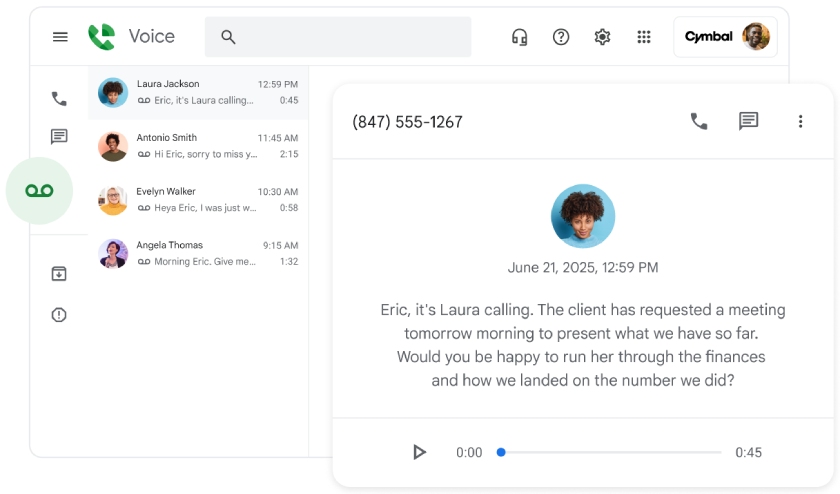
Google AI transcribes voicemails automatically. (Source: Google Voice)
Google Voice utilizes artificial intelligence (AI) to block spam calls. As your needs expand, you have the option to upgrade to a higher Google Voice plan and get access to advanced reporting tools and automatic call recording. This platform also integrates with Gmail and other Google Workspace tools, allowing for automatic call transcription, which is sent to your inbox for review.
Pros and cons of Google Voice
Google Voice is one of the best business phone systems, thanks to its low-cost access to virtual phone numbers. If you’re still undecided if it’s the right phone solution for your organization, here’s a quick overview of its key advantages and disadvantages:
Frequently asked questions (FAQs)
Yes, you can, but you need a Google Workspace subscription and your country must be Google Voice–supported. As of August 2025, Google Voice is available in Belgium, Canada, Denmark, France, Germany, Ireland, Italy, the Netherlands, Portugal, Span, Sweden, Switzerland, and the UK.
Yes, when you set up Google Voice, you can choose from a list of available numbers sorted by city or area code. You may not always find the combination that you want, but you can pick a number that’s easy to remember or one that resonates with your brand.
No, Google Voice works over the internet and does not require a SIM card. Once you’ve linked your Google Voice number to an existing mobile or landline, you can start making and receiving calls through the mobile or web app.
Bottom line
Google Voice works on multiple devices, allowing you to respond to calls and texts from anywhere, without being tied to a single device. The key consideration when getting a Google Voice phone number is its primary purpose.
If it’s personal use, like for solo projects or you simply want a second line, go for the free Google Voice option. If you intend to use the phone number for your business, choose the paid version, which offers HIPAA compliance and more extensive security features.