Customer relationship management (CRM) systems have robust and advanced features, like automation, analytics, and integrations, and can handle enormous amounts of data. Given these qualities, most CRM products have a learning curve and can be overwhelming for new users.
The best simple CRMs have clean interfaces, straightforward navigation menus, and intuitive features that can help teams analyze relevant data at a glance for hassle-free small business sales operations.
For the latest version of this list, it was important to me that I not only make sure our previous scores were accurate, but I also wanted to place a greater emphasis on our ease of use criteria and the four areas that I used to evaluate it. In any case, after going over the list and testing dozens of CRM systems, I came up with the 10 best simple customer relationship management systems that are actually easy to use.
Featured Partners
Fit Small Business is able to offer our services for free because some vendors may pay us for web traffic or other sales opportunities. Our mission is to help technology buyers make better purchasing decisions, so we provide you with information for all vendors — even those that don’t pay us.
1
monday CRM
Employees per Company Size
Micro (0-49), Small (50-249), Medium (250-999), Large (1,000-4,999), Enterprise (5,000+)
Any Company Size
Any Company Size
Features
Calendar, Collaboration Tools, Contact Management, and more
2
Pipedrive CRM
Employees per Company Size
Micro (0-49), Small (50-249), Medium (250-999), Large (1,000-4,999), Enterprise (5,000+)
Any Company Size
Any Company Size
Features
Calendar, Collaboration Tools, Contact Management, and more
3
Zoho CRM
Employees per Company Size
Micro (0-49), Small (50-249), Medium (250-999), Large (1,000-4,999), Enterprise (5,000+)
Any Company Size
Any Company Size
Features
Calendar, Collaboration Tools, Contact Management, and more
Easy CRMs for small businesses at a glance
monday CRM: Best easy CRM software overall

Pros
- Easy to set up automations that create or edit records based on presets
- Multiple viewing options with a spreadsheet-style format for storing data and customizing boards for data fields
- Offers unlimited contacts, documents, and boards
Cons
- Lead scoring requires the Enterprise plan
- Pricing can be misleading; all plans require a three-user minimum
- Lacks integrations for managing ad campaigns from the CRM
Read our monday CRM review
If you’re looking for one of the simplest CRM systems for small businesses, monday CRM is my top pick. It has a minimal to no learning curve, greatly benefiting new CRM users. Its spreadsheet-style format is easy to customize and makes transitioning from Excel or Google Sheets a breeze. Plus, it has multiple data viewing options that promote greater data visibility and seamless data management.
monday CRM can organize and manage customer data with its neatly arranged folders for each aspect of your sales process. This easy and best CRM for small businesses has a highly intuitive interface, which makes it very easy to navigate and customize.
For those who want a fresh start inside a lightweight CRM, monday has a simple sales pipeline template to manage contacts, leads, and workflows. Another great aspect of monday CRM is the various board viewing options to evaluate your database.
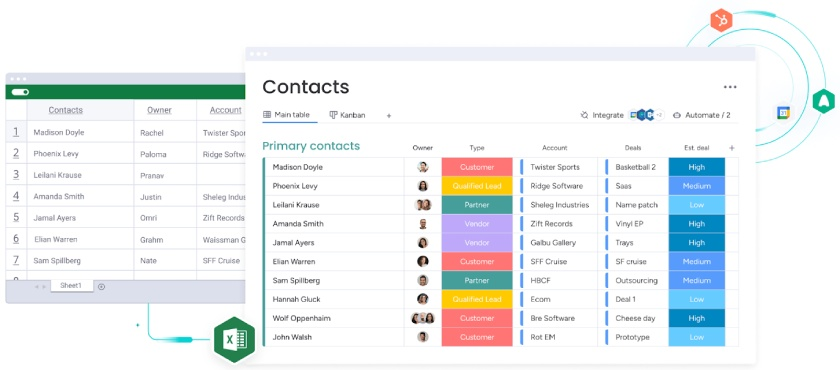
monday CRM’s contact management system features an intuitive interface. (Source: monday CRM)
Depending on your objective, such as checking sales pipeline progress, tracking task due dates, or identifying customers’ locations, you can look at their data in Kanban, timeline, calendar, map, chart, or workload views.
monday has simple workflows for importing data from Excel and Google Sheets.
- Select Import Data from the profile menu.
- Select the source of your new data.
- Upload your file.
- Customize your new monday board with the data you imported directly inside the data import dialog box. Specify column titles, rows, and styles (text boxes or status fields, for example).
- Create your board.
Importing Excel or spreadsheet data to an existing board follows a similar path and allows you to map data before completing the upload process. Find other instructions in the monday help center on how to avoid duplicates, skip items, and more, with ample images and GIFs to help you follow along.
If you need any help, all monday CRM plans come with 24/7 support via platform-integrated live chatbot. Or access its wealth of free resources, including webinars, tutorials, and courses through the Monday Academy and Learning Center, for a smooth self-help experience.
HubSpot Sales Hub: Best for an all-in-one solution

Pros
- Free plan has many all-in-one CRM features for sales, marketing, service, content, and operations
- Email automation features are free and require no coding
- Interface uses a simple layout with quick navigation
Cons
- Sales automation not available on the free plan
- Custom reports and deal summaries are only available to Professional users
- No tech support for free users
HubSpot’s CRM system stands out for its ease of use thanks to a clean, intuitive interface, fast setup, and simple customization. The visual layout makes it easy to navigate, with drag-and-drop pipelines and well-structured contact records that clearly show engagement history.
Users can get started within minutes, with guided onboarding that requires no technical background. Plus, the platform offers no-code customization for fields, deal stages, and workflows, making it accessible for teams without dedicated admins or IT support.
Overall, HubSpot CRM is one of the best CRMs for small businesses with free all-in-one features for marketing, sales, service, commerce, and operations, and an easy-to-access customer database. That’s because it’s built for adoption and scalability. This CRM system also has easy-to-use prospecting tools, which help identify leads visiting your website.
Personally, if there’s any downside to HubSpot’s learning curve, it’s the language. Its use of “objects” (including contacts, companies, deals, and tickets), “records,” and “properties” may confuse first-time CRM users. It’s the kind of language that only makes immediate sense to the person who invented it.
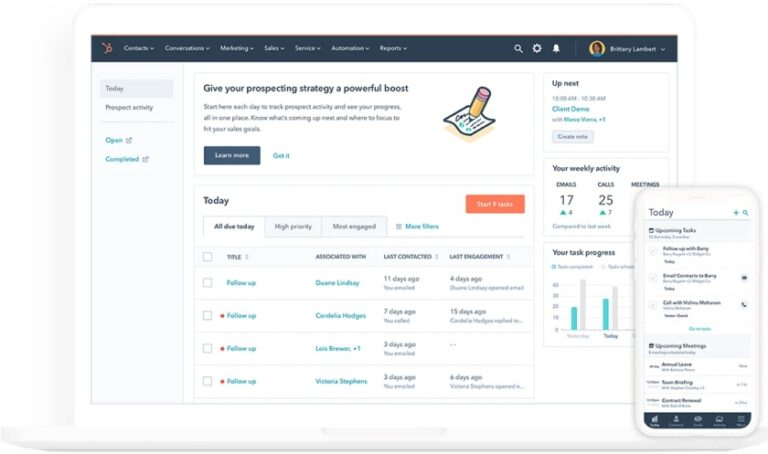
The HubSpot CRM dashboard shows tasks and activities on web and mobile views for all-around sales, marketing, and customer service operations. (Source: HubSpot)
HubSpot has a lot of help documentation to help get the system up and running, with most resources pointing first-timers in the direction of importing contacts before anything else. It also has sample files for importing contacts, companies, deals, and more that you can download and customize. For the sake of setup, I highly suggest using it, especially for visual learners.
Otherwise, the first thing you’ll need to do is set up your files for import, ensuring you meet the recommended requirements:
- Import CSV, Excel, or XLS files
- Use one sheet per object (not multiple tabs), like contacts, for example
- Include a header row to tell HubSpot what’s in each column: first name, email address, etc. (these are your properties)
- Avoid sheets with more than 1,000 columns and 500,000 rows
- Avoid importing files over 20MB
From there, you can start the importing process:
- Go to CRM in the HubSpot dashboard and select Contacts.
- You’ll be asked to choose between Import and Sync (most first-timers will choose Import).
- Select Import file from computer, and check the boxes that correspond with the type of data you have in your spreadsheet (Companies and Customers are common).
- Specify how many files you’re uploading (single or multiple), and drag-and-drop your file into the upload box.
- Choose how you want to import data and the language it’s in. Again, for first-timers, it’s common to choose Create and update.
- From here, HubSpot will map your data and deliver a preview of its work, indicating whether someone mapped correctly or if the program experienced an error. If a property or characteristic (for example, your client’s favorite color) doesn’t map to anything, you can create a new property (“Favorite color”) from within the preview dialog box.
- Select Create, name your import (this will be important if you need to import the data again in the future), and indicate whether these contacts have opted into receiving marketing emails or other digital communications.
- Select Finish. That’s it!
Capsule CRM: Best for creating AI sales emails

Pros
- Free plan includes an AI content assistant that helps craft and optimize sales emails
- Has built-in project and task management tools like Kanban-style project boards
- Offers an email marketing campaign designer with templates, drip automation, dynamic content, and campaign analytics
Cons
- Free plan is limited to 250 contacts, basic dashboards, and email tools
- Customer support is limited to email ticketing
- Lacks ecommerce features, like inventory management, a website designer, and purchase order processing
Capsule CRM is one of the best AI CRMs because of its free AI content assistant available in free and paid plans. Reps can reduce manual work by autogenerating sales emails based on contact data. Capsule even gives recommendations on the content, length, and tone of your message.
Plus, Capsule CRM offers Kanban-style boards and “Tracks” across all its plans, standardizing the project delivery and sales process. If you have a project-based business like a construction firm, Capsule CRM is a great option. You can easily track project timelines, conduct onboarding processes, and monitor customer activities, support requests, and client deliverables.
Capsule earned near-top marks in my ease-of-use evaluation. Yes, it makes it easy to connect your email to the CRM and use the AI content assistant. But I had to deduct some points from its templates. Only admins can create sales email templates, and they can only create up to five, starting in the first paid plan.
This simple CRM for small businesses allows sales reps to focus on selling, delivering on their promises, and streamlining sales and service operations in a single system. But if you rely heavily on templates, you might still have to rely on less efficient workarounds outside of the CRM.
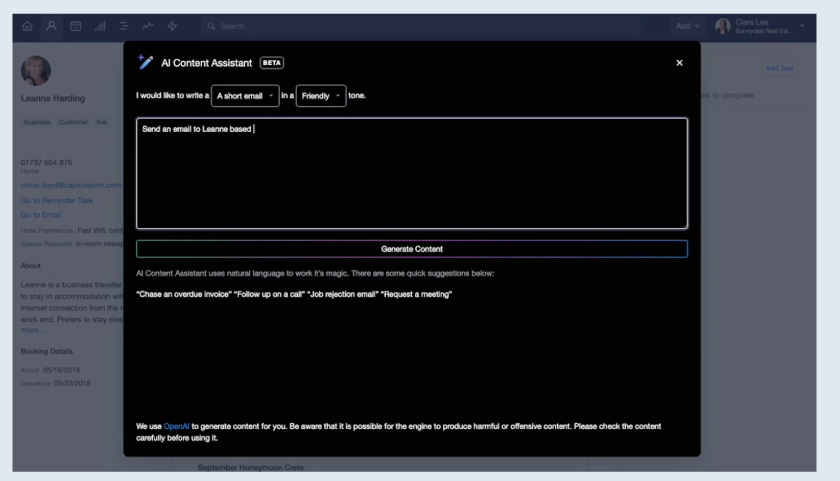
Capsule CRM’s AI content assistant can help reps create emails quickly and easily. (Source: Capsule CRM)
Capsule CRM allows you to import contact and opportunity data from your smartphone via mobile app, Gmail, Outlook, and LinkedIn, though, for the latter, you’ll have to do a fair amount of spreadsheet maintenance before you can complete the process.
I highly recommend configuring your CSV or Excel files with the right fields and columns for contacts and opportunities separately, filling in as many blanks as you can, before attempting to import and map.
- Open a spreadsheet or make a copy of an existing contact or opportunity sheet (so that you don’t lose any information accidentally).
- Create column headers for any of the following relevant information:
- First name and last name
- Organization (this is the business name)
- Job title
- Email address
- Phone number
- Street address
- City
- State
- ZIP code
- Tags
- Custom fields
- Notes
- Note that you can just import organizations, in which case, you’d leave the columns blank that come before the organization column. If you get lost, you can download a sample CSV file from Capsule directly.
- Open the People and Organizations tab in Capsule, select Import Contacts, and From a File > People and Organizations.
- Match your columns to their corresponding fields, and preview the result before completing the upload process.
Pipedrive: Best simple CRM for basic sales automation

Pros
- Has easy automation tools like Sales Assistant and Smart
- Contact Data to save time on lead nurturing and sales activities
- Has solid third-party integrations, such as Microsoft Outlook and Slack
- Has 24/7 multilingual live chat and email support
Cons
- No free plan; only a 14-day free trial
- Phone support starts in the Premium plan at $49 per user monthly
- Lead generation and web tracking tools start at an additional $32.50 monthly
Read our Pipedrive review
Pipedrive is one of our top sales automation software for automatically assigning sales tasks, updating CRM records, and more. Its smart Sales Assistant tool analyzes CRM data for lead prioritization and performance monitoring. And its Smart Contact Data feature crawls the web for valuable data to help supercharge lead-generation efforts.
It’s a powerful yet easy-to-use automation tool for data management, profile enrichment, and even sales proposal generation. Additionally, Pipedrive makes it easier to understand CRM data through its visualization tools. And it offers in-app calling and seamless integrations with more than 300 services and tools, including Microsoft Outlook and Slack.
It has a two-way integration for email, contacts, and calendar with Outlook, keeping data consistent between the two systems. And its Dealbot feature notifies users via Slack whenever there are updates or changes to deals.
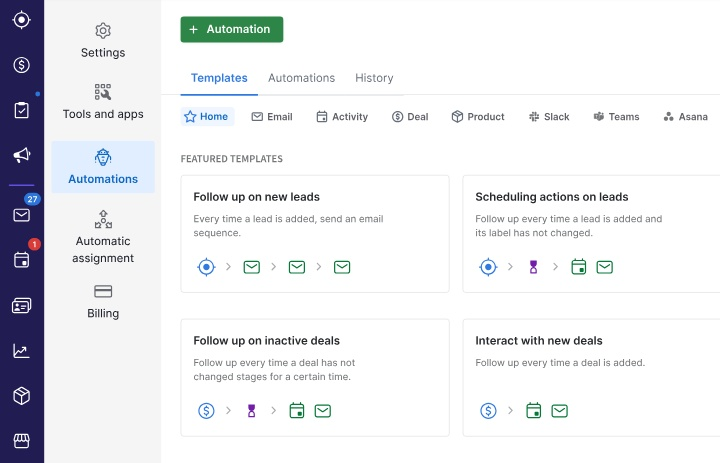
Pipedrive sales automation includes featured email templates to follow up with leads easily. (Source: Pipedrive)
Making the switch from spreadsheets to a lightweight CRM like Pipedrive involved setting up a CSV, Excel, or XLS file for import and then completing the mapping and uploading process (much like the other CRMs on this list).
The difference with Pipedrive is in its formatting and upload recommendations. On the plus side, Pipedrive makes it easy to specify which tab in a spreadsheet you want to upload (as long as the file doesn’t exceed 50MB or 50,000 rows per spreadsheet). So you don’t have to keep multiple spreadsheets lying around.
But you will need to place mandatory fields in separate columns so that Piepdrive can map each field correctly. Mandatory fields include having “lead title” and “person name OR organization name” to represent leads, and a person’s name, email, and phone number to represent people. Thankfully, Pipedrive has sample CSV files you can follow along with.
From there, it’s a matter of going through the import process:
- From the Import data screen, select Get started to import from a spreadsheet.
- Map and sort your fields.
- Preview and finish.
Zoho CRM: Best for basic CRM customization tools

Pros
- Offers a free plan for three users and a range of affordable pricing options with customization features.
- Easily integrates with social media profiles and Zoho’s ecosystem of business tools
- Has AI capabilities for data enrichment, sales forecasting, etc., at the Enterprise plan for $40 per user monthly
Cons
- Phone features aren’t available in the free plan
- Has limited file storage allocation in most plans (1GB)
- Basic customer support is limited to email, a self-service portal, community forums, and a knowledge base
Zoho CRM is the best simple CRM for small businesses that want complete customization and automation tools right out of the gate, in free and low-tier plans. That said, its rich feature set has a slight learning curve, but its highly intuitive interface is easy to use once you become familiar with the system.
If you’re looking to customize your CRM based on your branding and work preferences, you can change the homepage’s visual elements. For instance, you can modify list views and data fields, rename tabs, change search layouts, and even build custom modules — all in its free plan.
Furthermore, Zoho CRM integrates with Facebook, X (formerly Twitter), and LinkedIn. If you want to frequently interact with your followers and engage directly with customers via comments and messages, Zoho CRM is an excellent choice. With direct integration with Zoho’s business tools, like Zoho Desk and Zoho Campaigns, you benefit from more efficient business operations.
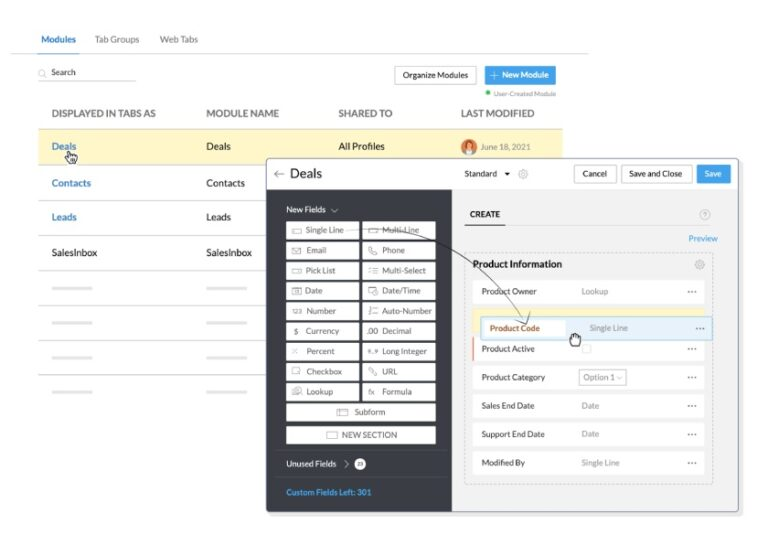
Zoho CRM lets you customize data with the fields you need for seamless records management. (Source: Zoho CRM)
Before you can change over from managing contacts, leads, and deals in spreadsheets over to Zoho, you’ll need to prep your data for import. Zoho offers an 11-point checklist to help you do it:
- Get the right permissions: Ensure you have import access; the option is hidden without it.
- Choose your file format: Use CSV, XLS, XLSX, or VCF. Remove images or embedded controls from Excel files.
- Avoid script tags: Do not include data wrapped in
- Apply mandatory fields: Required fields (e.g., Account Name) must be filled out to proceed.
- Apply checkbox fields: Use 1/True for checked and 0/False for unchecked values.
- Apply dropdowns: Match dropdown values in your file with those already in Zoho, or have them added first.
- Insert field names: The first row must include column headers for proper field mapping.
- Avoid blank rows: Avoid more than 10 consecutive blank rows — data after may be ignored.
- Watch out for your file size: Limits vary by plan (CSV: 5MB–25MB, VCF: 5MB max).
- Set row limits: Varies by edition (Standard: 10,000; Professional: 20,000; Enterprise: 30,000; Ultimate: 50,000).
- Add external fields: CSV fields can map to CRM external fields, but these can only be updated via API.
From there, you can import leads, contacts, accounts, etc., from their corresponding modules. Select the import button, add your file, and follow the steps to map, preview, and import your data.
EngageBay: Best for multichannel engagement campaigns

Pros
- Has multichannel engagement tools like live chat, email, SMS, video messaging, and social media
- Free plan has advanced campaign tools like lead scoring, social media monitoring, and live chat
- Cost-scalable plans range from $12 to $119 per user monthly
Cons
- Workflow automation and proposal management are not available until the Growth plan
- Only allows up to 500 contact records in low-tier plans
- Has no free calling features; calling minutes start in the Basic plan
EngageBay’s greatest strengths include its multichannel campaign management feature and its Social Suite. This simple CRM makes it easy to interact with your leads and customers through email, live chat, social media, SMS, and video messaging from a single platform.
This basic CRM system allows you to integrate your CRM with VoIP telephone systems like RingCentral and Twilio. With this capability, you can easily make and receive calls from leads and customers, ensuring you promptly respond to their inquiries efficiently and cost-effectively.
Plus, EngageBay’s predictive lead scoring helps improve conversions by helping you identify qualified leads who are closest to making a buying decision, a solid choice for lead generation on a budget. Overall, this is the best simple CRM system for solopreneurs because of its easy-to-navigate interface and its all-in-one capabilities.
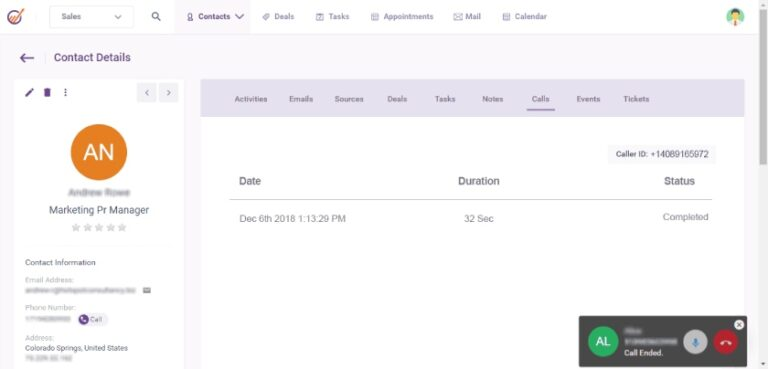
EngageBay CRM enables users to make calls directly with call recording for quality assurance and training purposes. (Source: EngageBay)
Given the trend thus far, I can only assume you’ll have to do some kind of spreadsheet prep and cleaning to switch over from a spreadsheet-only system to EngageBay. But just looking at the platform’s help documentation, it’s hard to find any notes on what that prep involves or the rules for fields and columns.
There are a series of help docs that briefly outline the import process for deals, companies, and contracts, which follow the same basic flow:
- Log in to your dashboard and navigate to the Sales module.
- Select Companies under Contacts.
- Select Import to be directed to a new window.
- Choose the CSV company file you want to upload.
- Match and map the different fields to merge information.
- Select Import to have all your company information uploaded.
There’s a simplicity and a vagueness to these instructions. Yes, EngageBay makes it easy. But being able to start using a simple CRM quickly means getting all your data into it correctly — and not having to do more work because of duplicates and messy spreadsheets. And if you need help, you’ll be limited to live chat or email.
Copper CRM: Best for contact profile enrichment

Pros
- Relatively easy-to-use and low-cost contact management and data enrichment start in its Basic plan
- Unique Google Chrome extension lets users view and access CRM data directly in Gmail or Google Calendar
- Has a similar interface and seamless integration with Google products
Cons
- It has no free plan, only a 14-day free trial
- Lead scoring is locked in the Business plan
- Non-Google integrations require the Professional plan
Read our Copper CRM review
Copper CRM’s Basic Plan at $23 per user monthly lets users enrich contact data using publicly available information to help in lead generation and sales follow-ups. The CRM searches the internet to discover and record contact details, social profiles, and other publicly available information.
Overall, Copper is an all-around easy CRM system to use in terms of operating the features and collaboration because it’s built specifically for Google Workspace users. It directly integrates with other Google products to expand data management functionality. This simple CRM tool also has a Chrome extension to modify CRM data records directly from within Gmail and Google Calendar.
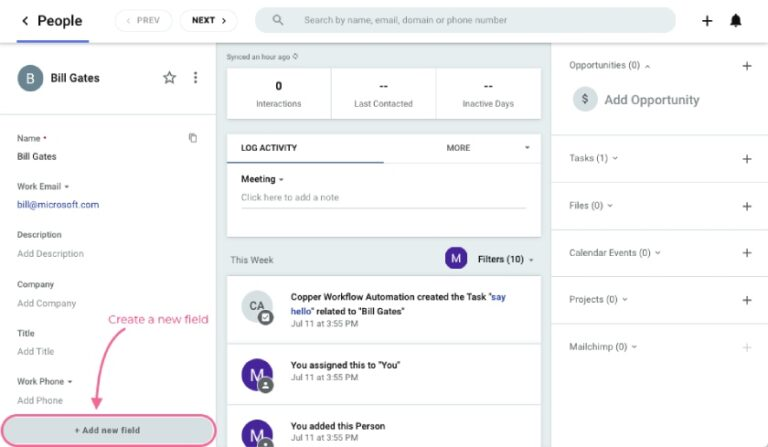
Copper CRM’s contact dashboard lets you create a custom field in a contact record for quick access and data organization. (Source: Copper CRM)
If you want to migrate from spreadsheets, like Google Sheets, to Copper CRM, you’ll need to do some maintenance and follow some of Copper’s best practices. For one, you won’t be able to connect or upload a Google Sheet, so make sure your records are prepped in an Excel or CSV file.
Unlike other CRM vendors on this list, Copper suggests importing companies, people, and opportunities in that order (you can import leads anytime). Keep your file sizes under 3MB, and make sure the first row of your import file is column headers (no column headers, no import).
Finally, keep your tags under 50 characters, and each tag has its own column. Then set up your custom fields and contact types (customer, competitor, partner, etc.) in Copper CRM before you upload your spreadsheet. Copper CRM’s help docs are pretty conversational in tone, so if you need help, they’re easy to follow.
Now, you’re ready to upload:
- Go to Profile > Workspace Settings > Manage Your Data > Import Data.
- Under Manage Your Data, choose Import Data.
- Select the record type (i.e., leads, people, companies, opportunities). If this is your first upload, you should select companies.
- Select the file type you want to import, and locate the file.
- Once your import loads successfully, you’ll see it displayed in similar rows and columns.
- Once you’ve fixed any inaccurate columns or cells, select Continue Import.
- You’ll be taken back to the import data page, where you’ll see one of three possible statuses:
- Initializing (Copper is processing the import)
- Status bar (How far along your import is, which may take several minutes depending on the size of the import)
- Summary (Your import was completed)
Less Annoying CRM: Best for a simplified experience regardless of industry

Pros
- Has a simple user interface and intuitive features for contact, task, and sales management
- Unlimited companies, contacts, custom data fields, sales pipelines, and permissions
- Quick-start CRM templates for 50 industries
Cons
- Limited integrations; mostly through an app connector like Zapier
- Lacks advanced AI and analytics capabilities
- No free plan, price variations, or annual billing option
Less Annoying CRM wins for the simplest plan structure with user-friendly navigation. Users can easily view contacts, leads, pipelines, and statuses in a simple, modern interface. This easy CRM system has easy-to-see menu options, and all features are accessible with unlimited contacts and companies. Plus, its cost-effective plan includes all features at a relatively low price without surprise charges or add-on fees.
Overall, I highly recommend this CRM for solopreneurs and startups, thanks to its 50 CRM templates for businesses across industries, including bookkeepers, content writers, event planners, dog walkers, magicians, landscapers, nannies, roofers, voice actors, yoga instructors, and more. Regardless of industry, it displays tasks and sales pipelines in a way that helps you quickly see where leads are and what the next best steps are.
Less Annoying CRM lets you store unlimited contacts, company records, custom fields, and sales pipelines. If you’re a solopreneur, this basic CRM makes data gathering more streamlined, even without extra hands available. Scaling businesses like service-based companies can save money with a single-priced plan for unlimited users.
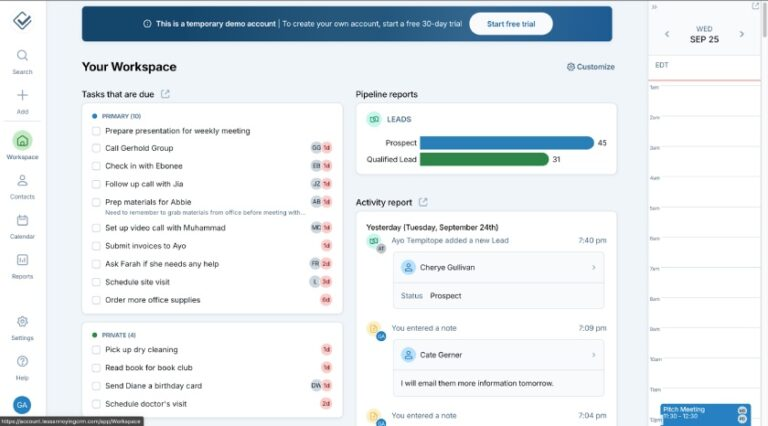
Less Annoying CRM’s workspace shows a simple user interface with common features reps can use to manage leads and sales. (Source: Less Annoying CRM)
Less Annoying CRM offers one pricing plan suitable for up to 10 users, and it’s just $15 per user per month plus tax. All users can start risk-free for 30 days, with no limits on available futures and full access to the platform’s customer support team. Anyone who anticipates needing more than 10 users can contact the sales department for a custom quote.
Less Annoying outlines four steps you’ll need to take before you can start importing files and switching to the CRM.
Step 1: Confirm you’re importing a spreadsheet of contact/company information (names, phone numbers, email addresses, etc.), and save your file in a CSV, XLS, or XLSX format only.
Step 2: Add column headers and delete any unwanted or extraneous data. Column headers must be in the first row of the spreadsheet. Delete any blank rows, unwanted columns, or any other data above your column headers. If your file has multiple tabs, ensure the one you want to import is the first one.
Step 3: Make sure you have one contact per row and one column per field. Each row should contain all of the information about a single contact/company. And each column in your spreadsheet should represent one piece of information about the contact (i.e., name, mobile phone number, home street address, home city, home state, home ZIP, etc.).
Step 4: Create CRM custom fields for columns that do not match up with default fields. Every column in your spreadsheet must be mapped to one field in the program. If a column doesn’t match up with an existing default field, you can create a custom field, map it to the “Background Info” field, or leave it out of the import. Notes are commonly mapped to the background field.
Now, you can start the import process yourself, or you can let the Less Annoying CRM team do it for you. They’re so committed to getting new users up and running that they’ll do up to three imports for you (if I could give them higher marks in the service category for this, I would).
If you’re flying solo:
- Navigate to Add and select Import contacts in the menu. Then, select Import a spreadsheet, select your file, and opt out of assistance.
- The system will ask if you have contacts, companies, or both in your spreadsheet. Choose the appropriate answer and select Go.
- Specify which of your file’s column headers correspond to contact and/or company names, and select Continue.
- Map the remaining columns in your file to fields in your CRM. If you’re creating both contacts and companies, decide whether columns should be mapped to the contact, the company, or both records.
- Double-check your mapping, and select Finalize the import.
Insightly CRM: Best simple CRM for built-in project & task management

Pros
- Built-in project management tools are included in the most basic plan
- Customize email templates with the drag-and-drop functionality
- Record-linking detects contact associations, lead routing for rep assignment, and quote management
Cons
- Add-on fees apply to customer service and marketing modules (starting at $29 per user monthly)
- Lacks social media features such as social profile enrichment.
- Product management capabilities are locked in the Enterprise plan ($99 per user monthly)
Read our Insightly CRM review
Insightly CRM offers several project management and delivery capabilities to help you tackle tasks quickly. Sales reps can turn deals into projects for 360-degree visibility of customer requirements. It promotes seamless after-sale transitions and retains more loyal customers. With milestones and pipelines, you can improve cross-team communication to attain goals.
Then, engage with your prospects using Insightly CRM’s customizable email templates. Front-end developers can easily add buttons, media, content blocks, and icons by simply dragging and dropping the elements for a custom email layout.
Because pricing and pricing flexibility are so important in a lightweight, simple CRM, Insightly lost some points from our last update for only offering annual billing. The loss was twofold: Usually, when a CRM vendor doesn’t offer a monthly billing plan, it means they’re not offering discounts for paying annually. Even for a great tool, having a higher starting price compared to others on this list pushed it down in the ranking.
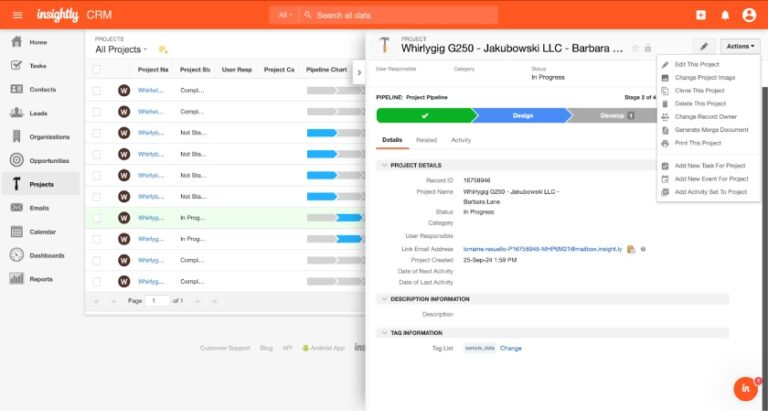
Insightly CRM’s project management board shows details and related actions to view and track task statuses. (Source: Insightly)
Changing over from spreadsheets to Insightly is very similar to the other simple CRM vendors on this list. First, you need to prep your spreadsheet, ensuring you have individual columns for fields like the following:
- First name
- Last name
- Job title
- Organization
- Work phone
- Email address
You can place customer notes in your spreadsheet, but you’ll need to make sure they’re in the same row as the contact or customer they’re associated with for Insightly to map them correctly. Other instructions include using actual dates in date columns and using numerals instead of spelling out figures. Finally, keep your data clean and free of errors or misspellings.
Once you’ve prepped your data, go to the appropriate object tab (like Contacts), then select Import in the sidebar. Choose your import method if prompted — typically, it’s Import Contacts from a CSV File. Select your CSV file and select Next.
Choose whether to add new records, update existing ones, or do both. Configure options like whether to skip the first row, trigger automations, or send notifications. Then map your CSV columns to Insightly fields, select Start This Import, and you’ll receive an email once the import is complete.
Streak CRM: Best for importing data via Google Sheets

Pros
- Offers a Chrome extension that allows you to operate the CRM inside your Gmail inbox
- Free plan includes unlimited contact storage and mass email campaigns
- Scalable paid plans range from $49 to $159 per user monthly.
Cons
- You will need the Pro+ plan at $69 per user to access workflow automation
- Only one user can access the free plan
- Third-party integrations outside of Google apps cost extra
Streak CRM redefines CRM simplicity by leveraging people’s familiarity with Google Workspace (it’s one of our top Google CRMs overall). By integrating the core CRM features into the Gmail inbox, you save yourself the extra time to master a new interface in one go.
Its Gmail connection allows you to access CRM data and tools from within your inbox so that you can monitor pipeline stages, records, and tasks without hopping between two platforms. On top of that, you can centralize collaboration, tasks and pipeline monitoring, lead tracking activities, and mass emailing efforts in one space using this simple CRM tool.
Even in its free plan, you can already store unlimited contacts and track associated data in the pipeline—a feature made exclusive to paid plans in other providers. On top of that, you can readily use this data to deploy mass email campaigns for prospects and leads in this basic CRM system.
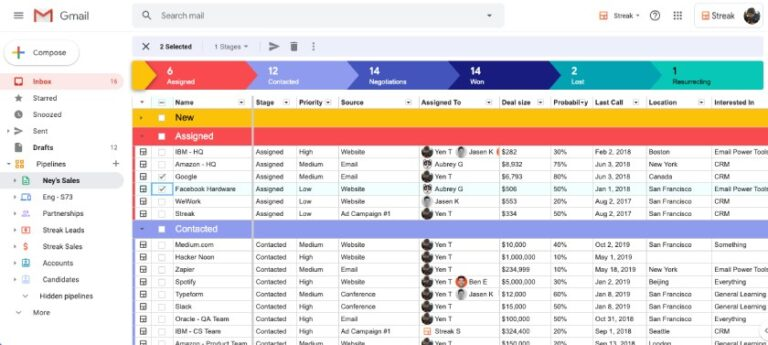
Streak CRM tools, like pipeline management, can be accessed in the Gmail inbox for efficient lead outreach, prospecting, and nurturing. (Source: Streak)
Thanks to its made-for-Google design, Streak CRM is the only CRM vendor on this list that allows you to import data from Google Sheets. No need to download or clean up an unfamiliar file format if you keep your business in Google Workspace. Follow the import steps from there:
- Navigate to your pipeline. Select the three-dot icon, the + icon, or the Import data button from the sidebar, and select Import.
- Choose to upload a Google Sheets, CSV, or Excel file, and select Next to begin mapping the data to your pipeline columns.
- Turn on or off the following settings:
- Automatic email sharing (turned on by default for contacts only)
- Update or create new boxes (boxes with the same name will be merged with existing boxes)
- Create missing stages/dropdowns/tags (they will automatically be created by default)
- Streak’s importer will automatically match columns in your file data with the same or similar column names on your Streak pipeline. Map out any remaining columns.
- Select any unmapped data and map it manually or create a new column type.
- When you’re done, select Next to review and finalize your data. Review any errors and clean your data by
- Using the “Find and Replace” function
- Deleting unwanted or duplicate rows
- Manually filling in empty cells
- Adjusting incorrect data or formatting
- Select Import Now to complete the process
Beginner mistakes to avoid when choosing a simple CRM
In my experience, those choosing a CRM for the first time and switching from spreadsheets to a lightweight system often stumble on several avoidable mistakes. And they’re mostly related to poor data hygiene, unclear field mapping, and underestimating the setup process.
How quickly and easily you start using a CRM really does depend on how easy it is to import data incorrectly — or get hung up, not being able to upload a file with a few too many rows.
1. Skipping the prep work
Many users dive into importing without properly cleaning their data. CRMs like Zoho and Copper require clean spreadsheets with no blank rows, missing headers, or mismatched columns. Forgetting to format dates, standardize tags, or create custom fields before importing can lead to errors or failed uploads.
2. Ignoring field mapping rules
CRMs like HubSpot, Insightly, and Pipedrive rely on strict field matching. Users often don’t map spreadsheet columns correctly to CRM fields, especially with checkboxes, dropdowns, or multi-select fields, which results in lost or misclassified data.
3. Uploading everything at once
First-time users frequently import all their data in bulk without testing. This can lead to duplication, formatting issues, or orphaned records (e.g., people without companies). CRMs like Capsule and Less Annoying recommend importing smaller test files first.
4. Uploading in the wrong order
Uploading contacts before companies, or opportunities before leads, can create relationship mismatches in systems like Copper or Insightly. Most CRMs follow a specific import hierarchy: companies first, then people, then deals.
5. Overlooking custom fields
Users often forget to set up custom fields in advance. Platforms like monday.com, Zoho, and Streak require that any non-standard data — such as industry codes, favorite products, or lead sources — be mapped to an existing or newly created field during setup.
6. Underestimating terminology
CRM language isn’t always intuitive. Terms like “objects,” “records,” and “properties” in HubSpot can confuse spreadsheet users used to rows and columns. Not knowing what “boxes” mean in Streak or how “pipelines” differ from “projects” in Insightly causes user friction.
7. Assuming built-in intelligence
Just because a CRM is simple doesn’t mean it will auto-correct data errors. Tools like Pipedrive and Zoho won’t clean up duplicates or validate dropdown entries unless explicitly told to. And some actions (like adding new dropdown values) must be done manually.
8. Forgetting to turn on key features
During import, users often overlook critical settings like enabling automation workflows, email tracking, or assigning owners. Insightly and HubSpot let users toggle settings like “trigger automations” and “send notifications,” but many skip them unknowingly.
9. Using the wrong file format or size
Even simple CRMs like Less Annoying or EngageBay won’t import properly if the file is in the wrong format (e.g., Google Sheets without exporting to CSV or XLS). Some CRMs also have strict size (usually 30MB to 500MB) or row and column limits.
How I evaluated the best simple CRMs
To evaluate the best simple CRM, I researched a variety of CRM solutions known for their intuitive interfaces, minimal learning curves, clean layouts, modern color schemes, simple button placements, and solid user experiences.
What’s changed since we last updated our scores is a greater emphasis on ease of use. Previously, pricing and general features were weighted the heaviest. After some consideration, I decided to weigh ease of use the highest, followed by a CRM’s feature availability and pricing. It was important to me that the scores reflected the best solution.
30% of Overall Score
This criterion evaluated how easy it would be for someone to use a CRM and how easy it might be for them to migrate or switch to it from a spreadsheet-only process. Overall, I looked at the availability and variety of built-in templates to help someone get up and running quickly, the learning curve based on the complexity of the interface, the ease of setup, and scalability.
25% of Overall Score
I looked at the overall features crucial to any basic CRM software, regardless of its primary use case or usability ratings. I wanted to see if each product had tools essential to any sales operation. It should have customizable pipelines, reporting and analytics tools, and an extensive range of third-party and native integration options. I also considered the lead management tools and mobile app capabilities.
15% of Overall Score
Although pricing is essential to the small business buying decision, I didn’t want to take precedence over the purpose of this guide: finding the easiest CRM to use, regardless of price. Full points were awarded to CRM vendors that offered a free plan (as opposed to just a free trial), have monthly billing plans for buyers who don’t want to be locked into long-term investments, and discounts on annual billing options.
I also evaluated each tier on a range of typical subscription prices, awarding full points to starting prices in the lowest range ($1-$30 monthly).
15% of Overall Score
Though each product that made the list should be easy to operate, extensive support and customer service are still necessary to help prevent poor experiences. I evaluated this category in terms of customer service hours and the availability of support via phone, live chat, and email. I also looked at self-service and help center resources users could access, like tutorials, forums, or training modules.
15% of Overall Score
In addition to first-hand experiences with these intuitive CRM systems, I evaluated what actual users say about each product according to online reviews. These criteria consider how customers feel about the product’s ease of use. It also provides insights into customer feelings regarding value for the price paid and how useful they find the CRM’s features.
*Percentages of overall score
Frequently asked questions (FAQs)
The easiest CRM to use depends on the user’s experience and preference. For example, we rated monday CRM as the easiest system to use for its spreadsheet-like interface, making it easily adaptable for users who need to easily switch from a program like Excel to a lightweight CRM.
A CRM for beginners is intuitive, has a straightforward layout and navigation, and has a minimal learning curve for first-time users. Your best options for beginner-friendly CRMs include all the providers like monday CRM, HubSpot Sales Hub, and Capsule CRM. However, you may lean more toward HubSpot CRM for a more general experience in operating a holistic CRM, or Streak CRM if you want a CRM integrated with Google Workspace.
Less Annoying CRM is one of the best CRM systems for solo users. It includes all the features the provider can offer in an affordable one-price plan. The free-forever tools from HubSpot CRM, Zoho CRM, Capsule CRM, EngageBay, and Streak are also great options for single users. These CRM systems can save you money while giving you the freedom to use and maximize basic CRM functionalities for your startup or solo-managed small business.
Using an easy CRM is highly beneficial if you’re starting a service-based business or a small business owner wanting to efficiently manage your sales, customer service, and marketing operations with just one tool. A user-friendly interface with Kanban-style boards and intuitive features can save time and effort and help you focus more on your business.
Bottom line
Simple CRM software is uniquely built so that users at any technical level can navigate the interface and operate features easily. These products have minimal button menu options, clean layouts, and calming color schemes that don’t overwhelm users and impact their experience. monday CRM is my top pick for the easiest CRM for small businesses due to its spreadsheet-style interface and simple sales templates that make it easy to get up and running.